ZuoyeXian User Guide
1. How to Configure Screen Time Management & Time Exchange?
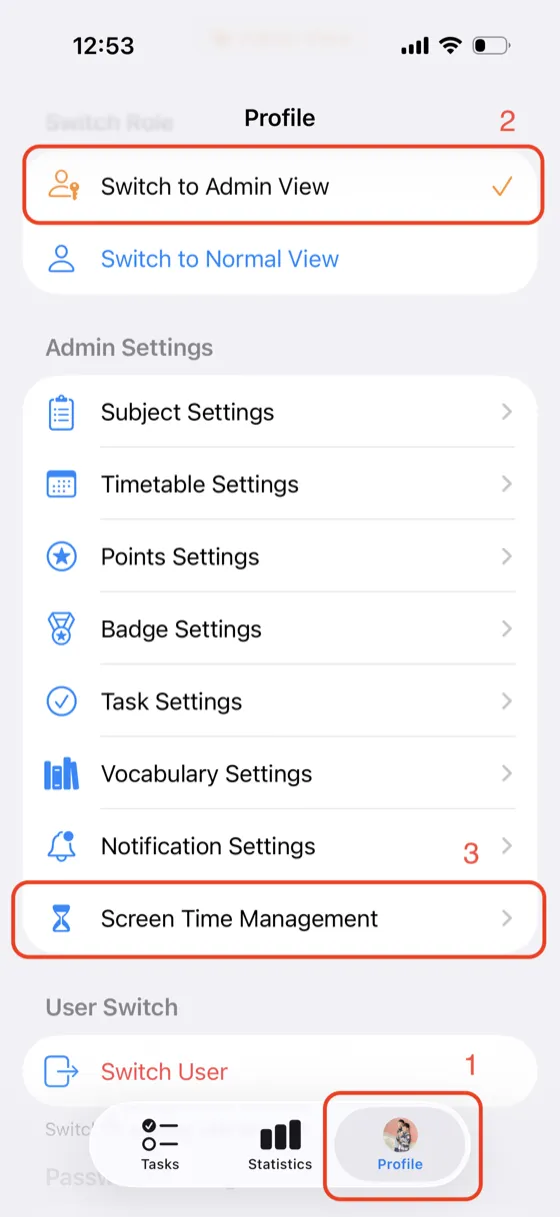
1Open the app, go to the [Profile] tab, and enter the [Profile] page. If the current user is not the [Admin User], switch to the [Admin User] account via [Switch User].
2Make sure [Switch to Admin View] is enabled. If not, tap [Switch to Admin View] to enable it.
3Tap [Screen Time Management] to enter the screen time settings page.
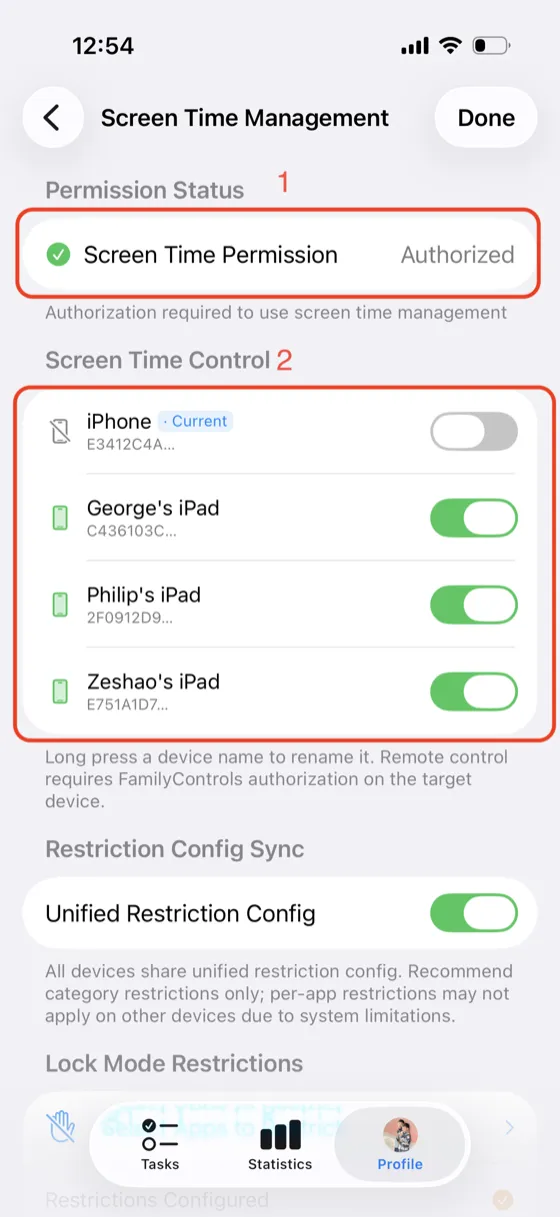
4Confirm that [Screen Time Permission] has been granted. If not, tap to grant the permission.
5Devices that have been granted [Screen Time Permission] can be enabled for control in the [Screen Time Control] list.
6In [Lock Mode Restrictions] / [Study Mode Restrictions] / [Free Mode Restrictions], tap [Select Apps to Restrict] to open the app picker and choose categories or specific apps to restrict.
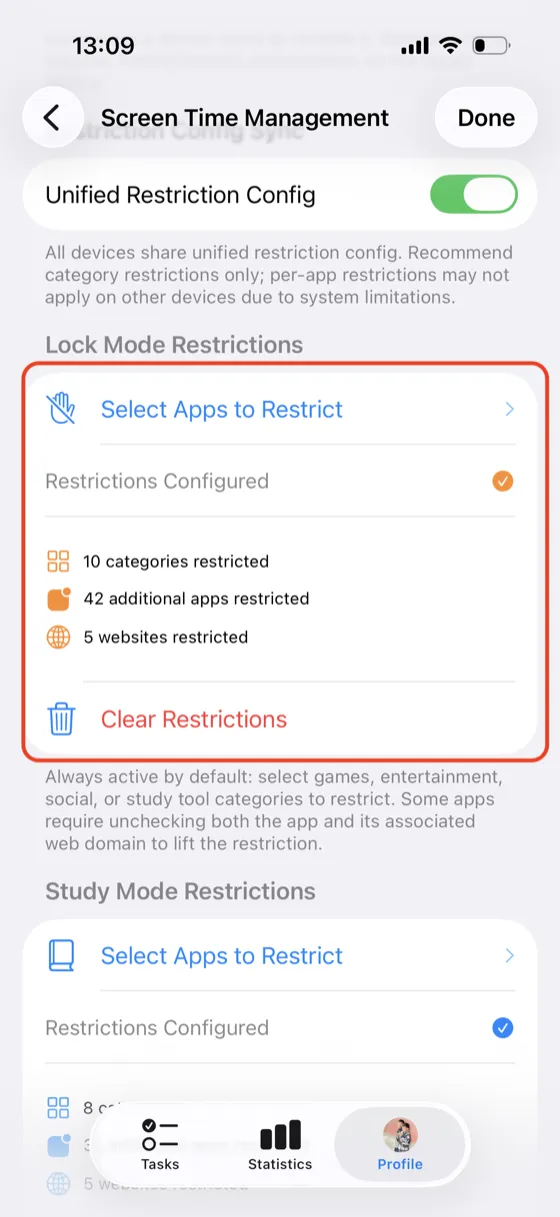
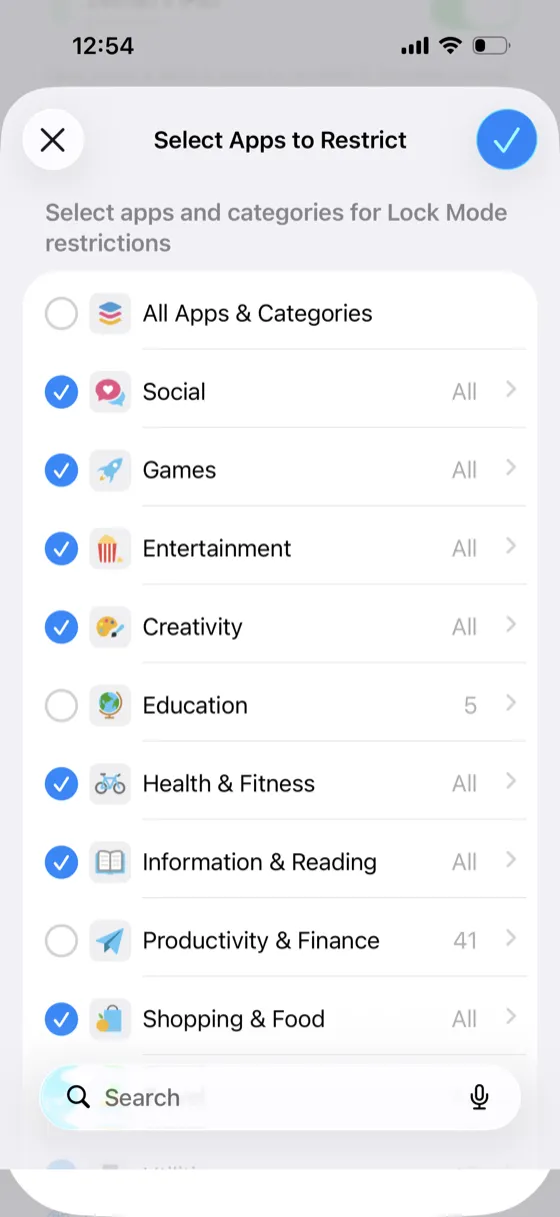
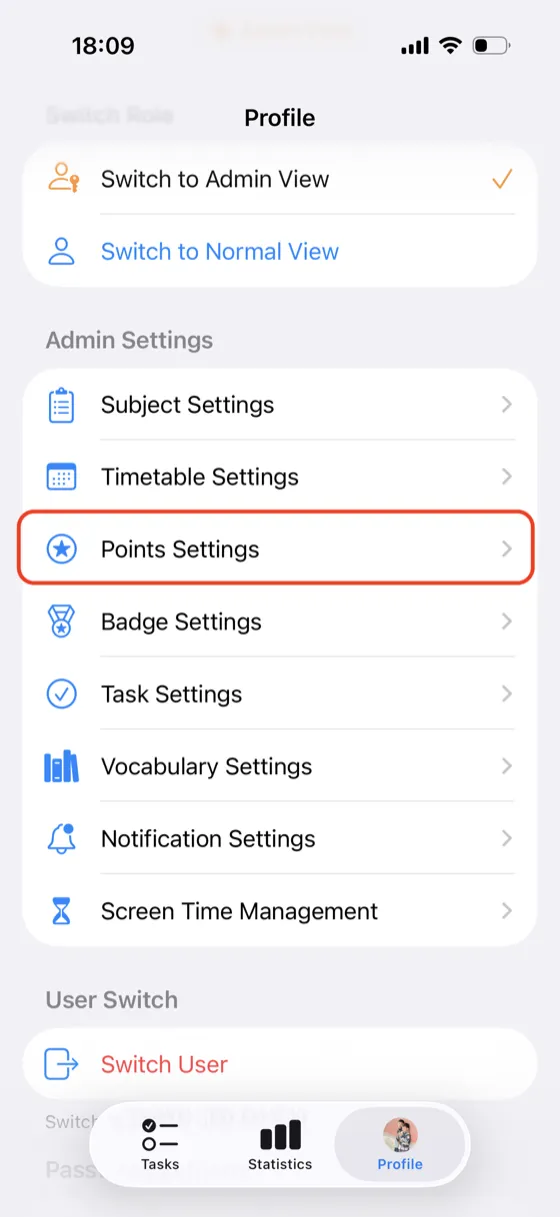
7Once configured, return to the [Profile] page and tap [Points Settings] to enter the points settings page.
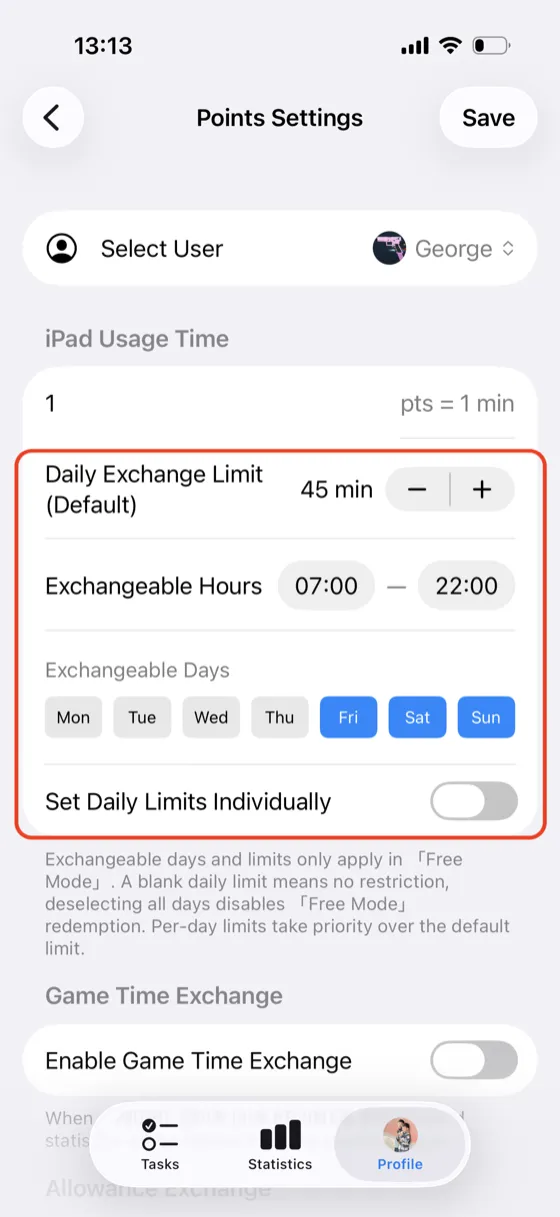
8Under [iPad Usage Time], configure parameters such as daily exchange limit, available time slots, and available days.
2. How to Exchange iPad Time in [Free / Study] Mode?
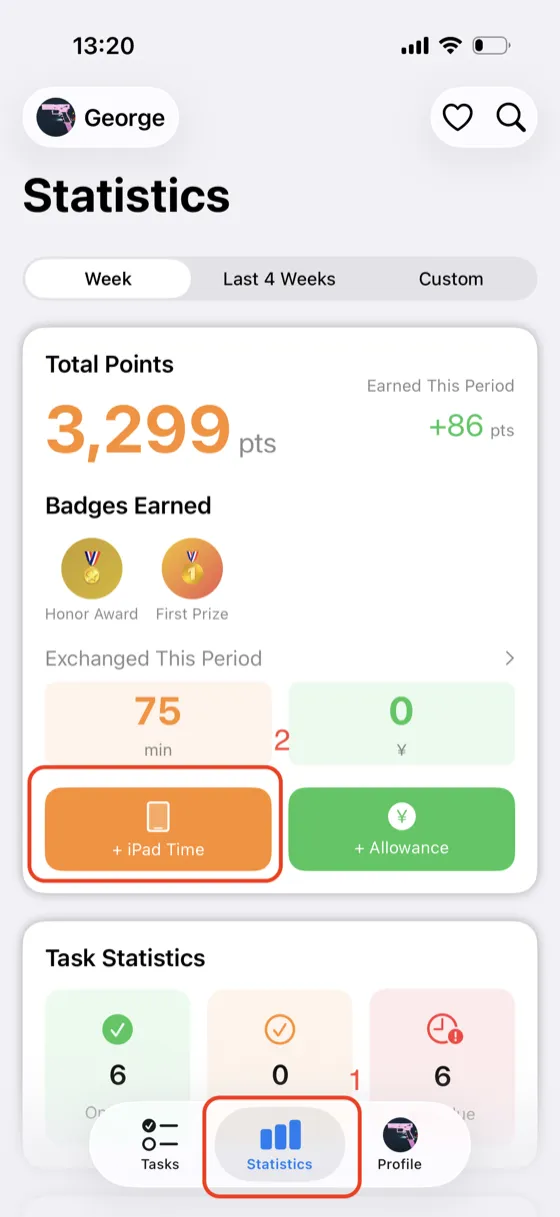
1As a [Child User], after completing tasks and earning points, go to the [Statistics] tab and tap [Exchange iPad Time] to enter the exchange page.
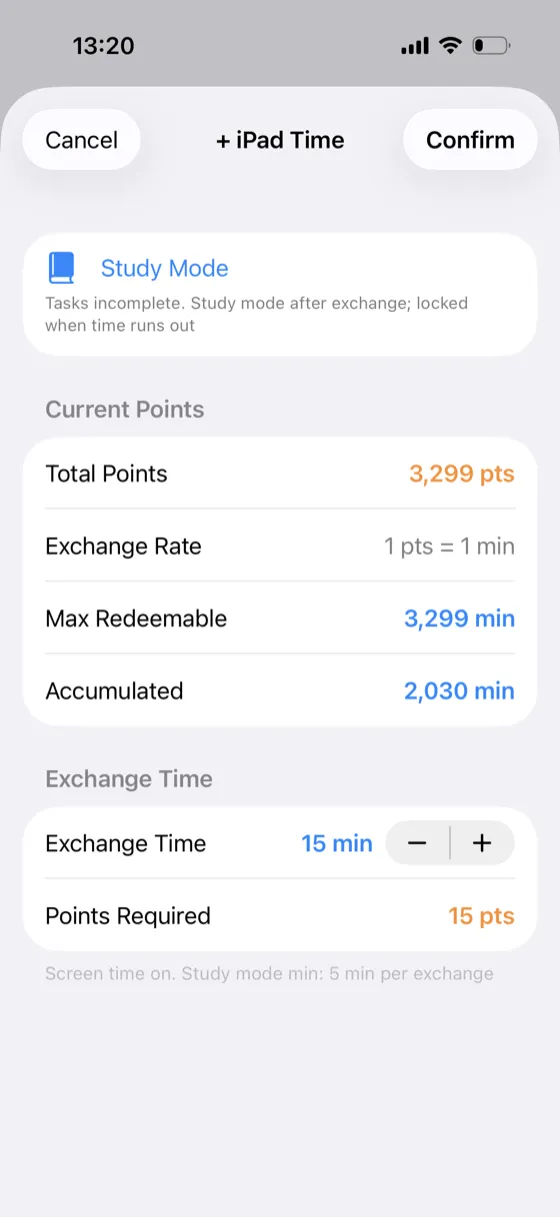
2The [Child User] can exchange iPad time in [Study Mode] or [Free Mode] based on the day's task completion status.
3After a successful exchange, [Screen Time Management] will apply the restriction configuration for [Study Mode] or [Free Mode], unlocking apps that are not in the restriction list.
3. Contact Us
If you encounter any issues while using the app, please contact us:
- Email: 33142343@qq.com